Tuesday, 12 April 2016

How to get Service Resource Resolver ?

Goal:

How to get Service Resource resolver ?

Explanation:

One of the Important change in AEM 6.1 securities is related to Admin Resourceresolver. In AEM 6.1 getAdministrativeResourceResolver has been deprecated other way to get this resourceresolver is using serviceResourceResolver.

Steps:

Go to /crx/explorer and click on “User Administration” link. On the popup, click on “Create System User” button, and enter the userid (anything you like).


Goto Useradmin console and provide required permissions for the user.

After creating the user and assigning appropriate permission, you need to add an entry in the “Apache Sling Service User Mapper Service”. This entry is to allow your bundle to access the permissions of the system user.

Go to Configuration Manager in the system console and search for “User Mapper Service”

<bundle symbolic name>:<any name of service>=<system user id>

*You need to add all the bundles that access the permissions of the system user. It can also be the bundle shipped with AEM.

If you see an error in the error log, which cannot access service for the specified package or bundle, it means you need to an entry for that bundle here.


Get the Service Resource Resolver in code

Map<String, Object> param = new HashMap<String, Object>();

// writeService is the service name you gave in the configuration of user mapper service

param.put(ResourceResolverFactory.SUBSERVICE, “writeService”);

ResourceResolver resolver = resolverFactory.getServiceResourceResolver(param);


Now this resourceresolver is used as per the permissions given for the user.

Saturday, 9 April 2016

QR Code Generator component


Goal:

To Develop a component for generating QR code in AEM.

How To ??

Create a AEM component with the below structure.


Jsp:

<img width="<%=properties.get(WIDTH,"")%>" src="<%= request.getContextPath() %>/libs/wcm/mobile/qrcode.png?url=<%=properties.get(CODE,"")%>"/>

Mobile QR Code Generatorcom.day.cq.wcm.cq-wcm-mobile-qrcode will be used to generate the QR code.
/libs/wcm/mobile/qrcode.png


First Touch UI Component


Goal :

To create our first Touch UI component.

Steps:

  1. Create a component name touchui.
  2. Create a node with primary type nt:unstructured name cq:dialog.
    1. Property sling:resourceType and value cq/gui/components/authoring/dialog.
  3. Create a node with primary type nt:unstructured name content under cq:dialog node.
    1. Property sling:resourceType and value granite/ui/components/foundation/container.
  4. Create a node with primary type nt:unstructured name layout under content node.
    1. Property sling:resourceType and value granite/ui/components/foundation/layouts/tabs.
    2. Property type value as nav.
  5. Create a node with primary type nt:unstructured name items under content node.
  6. Create a node with primary type nt:unstructured name section under items node.
    1. Property sling:resourceType and value granite/ui/components/foundation/section.
  7. Create a node with primary type nt:unstructured name layout under section node.
    1. Property sling:resourceType and value granite/ui/components/foundation/layouts/fixedcolumns.
  8. Create a node with primary type nt:unstructured name items under section node.
  9. Create a node with primary type nt:unstructured name column under items node.
    1. Property sling:resourceType and value granite/ui/components/foundation/container
  10. Create a node with primary type nt:unstructured name items under column node.
  11. Create a node with primary type nt:unstructured name textfield under items node.
    1. Property fieldLabel and value TextField
    2. Property name and value ./name.
    3. Property sling:resourceType and value granite/ui/components/foundation/form/textfield.

Note :

To develop all types of widgets in touch UI download below dialog implementation


Sunday, 20 March 2016

Error Page Handler Using ACS Commons

Goal:

Provide an author-able means for defining, creating and managing custom Error pages per content tree/site.

How to use:

  • Create the proxy overlays for Sling errorhandler scripts (404.jsp and default.jsp) which include the acs-commons counterparts.
  • Create the overlay for 404.jsp
    • /apps/sling/servlet/errorhandler/404.jsp
    • <%@page session="false"%><%%><%@include file="/apps/acs-commons/components/utilities/errorpagehandler/default.jsp" %>
  • In your base page implementation, add the following cq:Widget to the Page Properties dialog
    • <errorpages jcr:primaryType="cq:Widget" path="/apps/acs-commons/components/utilities/errorpagehandler/dialog/errorpages.infinity.json" xtype="cqinclude"/>
  • Create a sling:OsgiConfig node to enable the Error Page Handler
    • /apps/myapp/config/com.adobe.acs.commons.errorpagehandler.impl.ErrorPageHandlerImpl.xml

<?xml version="1.0" encoding="UTF-8"?>
<jcr:root xmlns:sling="http://sling.apache.org/jcr/sling/1.0" xmlns:cq="http://www.day.com/jcr/cq/1.0" xmlns:jcr="http://www.jcp.org/jcr/1.0" xmlns:nt="http://www.jcp.org/jcr/nt/1.0"
jcr:primaryType="sling:OsgiConfig"
enabled="{Boolean}true"
cache.serve-authenticated="{Boolean}true"
cache.ttl="{Long}300"/>

  • Create a CQ Page that will act as the default Error page, and also contain all custom variations of error pages. Each error page’s “name” (Node name) should correspond to the HTTP Response Status code it should respond to.
    • 500: Internal Server Error
    • 404: Not Found
    • 403: Forbidden
  • Create the above pages under root page of the project structure e.g., /content/projectroot/errors/500
  • Finally, Edit the Page Properties of the site’s root node, and in the new “Error Pages” dialog input
More Links:

Friday, 18 March 2016

Getting values to selection dropdown using servlet and listener


Goal:

To get the values of the page into dropdown which is selected in the pathfield.

Dialog Structure:


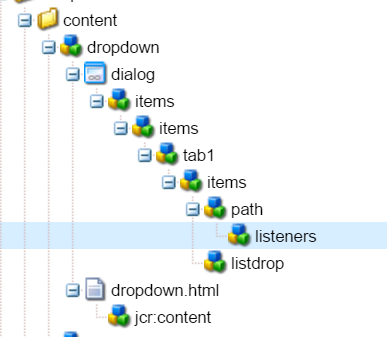
Create a dialog with one path field and selection field as shown in the image and listeners to the path field which is used to call the servlet and get the page values.

Listener:

Name of the listener is dialogclose :

function(){ 
var dialog = this.findParentByType('dialog');
var selectBox = dialog.findByType('selection')[0];
        $.getJSON('/libs/dropdown?Path=' + this.value, 
            function(jsonData){
selectBox.setOptions(jsonData);
                        });
 }

The above listerner is triggered when the pathfield is selected and when the browse dialog is closed.


Servlet:

package com.geometrixx.sightly.servlets;

import java.io.IOException;

import javax.jcr.Node;
import javax.servlet.ServletException;

import org.apache.felix.scr.annotations.Component;
import org.apache.felix.scr.annotations.Properties;
import org.apache.felix.scr.annotations.Property;
import org.apache.felix.scr.annotations.Service;
import org.apache.sling.api.SlingHttpServletRequest;
import org.apache.sling.api.SlingHttpServletResponse;
import org.apache.sling.api.servlets.SlingAllMethodsServlet;
import org.apache.sling.commons.json.JSONArray;
import org.apache.sling.commons.json.JSONException;
import org.apache.sling.commons.json.JSONObject;

import com.day.cq.wcm.api.Page;


@Component(immediate = true, description="DropDown Servlet")
@Service(value = javax.servlet.Servlet.class)
@Properties(value={
@Property(name="sling.servlet.extensions",value={"html","json"}),
@Property(name="sling.servlet.methods",value={"GET","POST"}),
@Property(name="sling.servlet.paths",value={"/libs/dropdown"})
})
public class DropDown extends SlingAllMethodsServlet{

/**
*/
private static final long serialVersionUID = 1L;
protected void doGet(final SlingHttpServletRequest req,
            final SlingHttpServletResponse resp) throws ServletException, IOException {
        doPost(req, resp);
    }
protected void doPost(final SlingHttpServletRequest req,
            final SlingHttpServletResponse resp) throws ServletException, IOException {
JSONArray jsonArray = new JSONArray();
JSONObject jsonObject = new JSONObject();
try {
String pagePath = req.getParameter("Path");
Page selectedPage = req.getResourceResolver().getResource(pagePath).adaptTo(Page.class);
String pageTitle = selectedPage.getPageTitle();
String pageName = selectedPage.getName();
String pageNavigationTitle = selectedPage.getNavigationTitle();
jsonObject.put("text", "PageTitle");
jsonObject.put("value", pageTitle);
jsonArray.put(jsonObject);
jsonObject = new JSONObject();
jsonObject.put("text", "PageName");
jsonObject.put("value", pageName);
jsonArray.put(jsonObject);
jsonObject = new JSONObject();
jsonObject.put("text", "NavigationTitle");
jsonObject.put("value", pageNavigationTitle);
jsonArray.put(jsonObject);
resp.getWriter().println(jsonArray.toString());
} catch (JSONException e) {
// TODO Auto-generated catch block
e.printStackTrace();
}
}
}

Above servlet is used to generate the JSON response to get the options into dropdown as TEXT and VALUE pair.


Monday, 7 March 2016

AEM Important Links

How to find the runmodes of a AEM instance

In your start-script of your CQ5 instance you can extend the runmodes of your CQ5 instance like this:

::* runmode(s)
set CQ_RUNMODE=author,localhost,europe

What I never could find is the option to check whether cq really picked up this change.

Well here is how to do it:

Go to your Felix console (/system/console).
Click on “Configuration Status” (/system/config)

Use these arrows to navigate through all the tabs, until you see ‘Sling Settings’.

In this tab the runmodes are displayed.

In CQ 5.6.1 there is an easier way to find the runmodes, just go to this url:

http://server:port/system/console/status-slingsettings